User Documentation
The complete guide to managing your campus assets, enforcing parking policies, and automating student payments.
Platform Overview
Serenity Campus is an Enterprise Resource Planning (ERP) platform designed specifically for the logistical headaches of physical campus management. Instead of relying on spreadsheets and manual cash collection, administrators can manage visitors, lockers, parking spaces, physical keys, and digital hall passes dynamically.
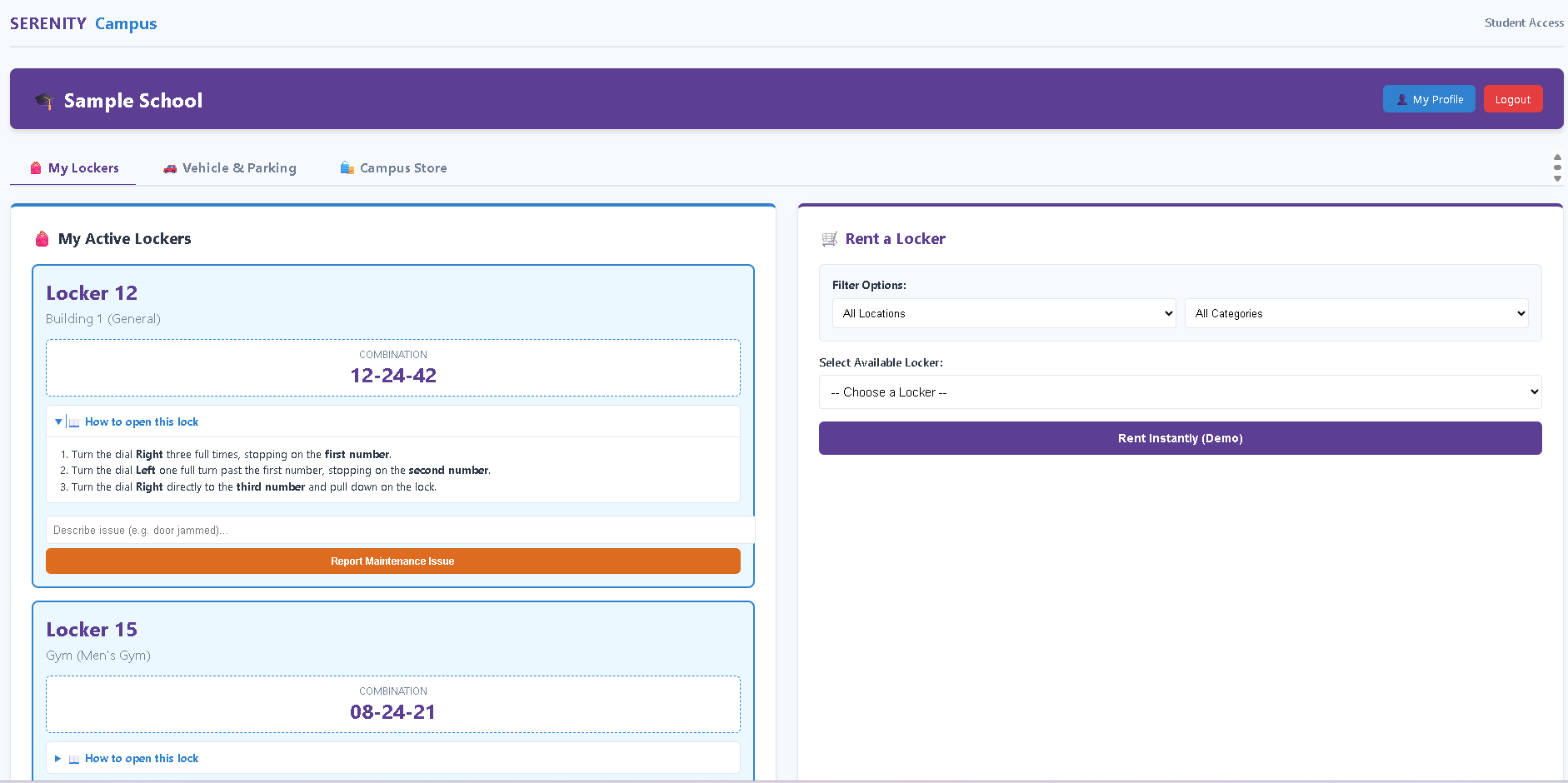
The 24/7 self-service Student Portal where users rent lockers, register vehicles, and purchase campus perks.
Students use a 24/7 self-service portal to rent lockers, register vehicles, purchase perks, and retrieve their lock combinations. Administration and Security staff use a unified web dashboard and mobile-friendly Progressive Web App (PWA) to audit inventory and maintain campus order.
Pricing & Business Model
We believe schools should not have to pay massive upfront software licensing fees.
The Base Software is Free.
Serenity Campus is completely free to use for educational institutions. There are no monthly SaaS subscriptions or user-limit tiers for the base asset management suite.
How we make money: We apply a nominal platform fee to transactions processed through the student portal. Administrators have full control over this fee. You can choose to absorb the fee so students pay exactly the face value of the item, or you can pass it on to the student as a small convenience fee at checkout. (Note: Advanced background screening features in the VMS module may carry a separate API subscription fee).
User Roles & Access (RBAC)
The platform utilizes Role-Based Access Control to ensure staff only see the tools they need:
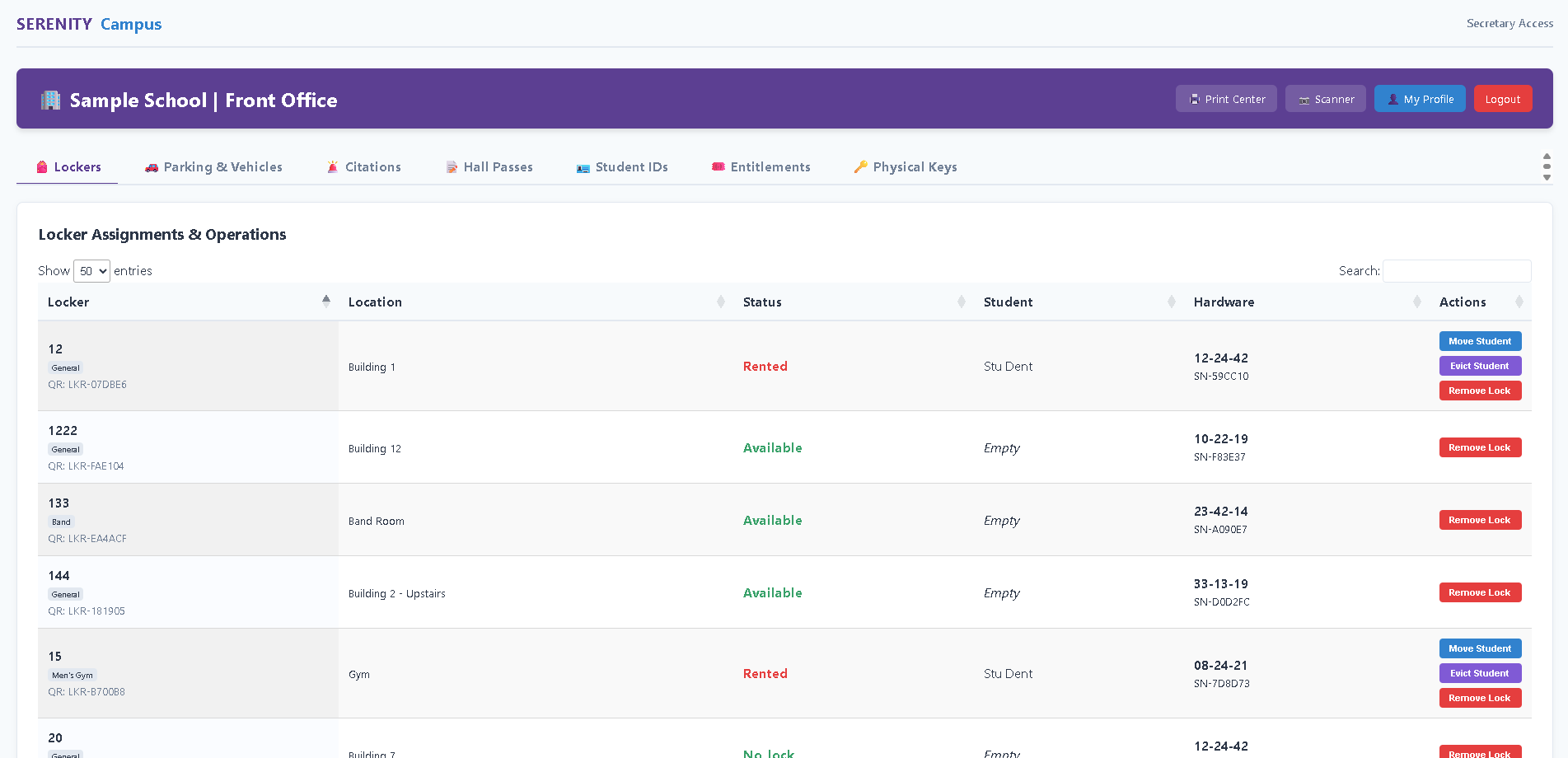
The Unified Command Center (Front Office) available to Secretaries and Administrators.
- District Admin: Multi-campus oversight. Can securely manage bulk operations across multiple schools, run cross-campus comparative reporting, and "ghost" into specific schools to assist local staff.
- Admin: Full access to the Front Office, Inventory Creation, Global Settings, Billing, and Data Exports for a specific campus.
- Secretary: Front Office access. Can screen visitors, assign lockers, capture ID photos, grant entitlements, and check out keys, but cannot alter master inventory settings.
- Teacher: Highly restricted view. Can only access the digital Hall Pass issuance panel.
- Security: Access to the mobile scanner to issue citations and verify student IDs.
- Maintenance: Access to the scanner to view and clear jammed locker reports, and field-assign hardware.
Global Settings & Modules
Administrators can customize the platform to fit their specific school needs by navigating to Inventory -> Settings.
- Active Modules: If your school doesn't use lockers or doesn't charge for parking, simply uncheck the module. The system will automatically hide those tabs from the Front Office, Student Portal, and Print Center. All modules can be individually toggled.
- School Colors: Enter your school's primary HEX color code to automatically theme the admin dashboards, student portals, and the headers of your printed ID badges.
- Convenience Fees: Toggle whether the platform's credit card processing fees are absorbed by the school's payout, or passed onto the student at checkout as a convenience fee.
- Category Limits: Prevent students from hoarding resources by setting rental limits (e.g., maximum of 1 "General" locker per student).
- Manage Inventory: View and edit your inventory of locks, lockers, parking spaces, entitlements, and physical keys available to issue.
- Import/Export: Admins can import bulk data from CSV files, and export reports to CSV.
District Command Center
For organizations operating multiple campuses, the District Command Center provides a macro-level overview of operations. District personnel can:
- Cross-Campus Imports: Upload a single master CSV containing data for multiple schools (utilizing the "School ID" column to route records automatically).
- Comparative Analytics: Run district-wide reports comparing asset utilization, visitor traffic, and revenue across the network.
- Batch Resetting: Execute the End-of-Year Reset process across numerous selected campuses simultaneously.
Recommended Hardware & Equipment
To get the most out of Serenity Campus, we recommend equipping your staff with reliable, industry-standard hardware. While the software works with nearly any generic peripherals, the following devices have been tested for optimal compatibility and rapid field deployment.
Standard Office Printers (Laser/Inkjet) work perfectly for everything on the main administrative dashboards, including reports, Avery labels, and front desk visitor badges.
Automated Visitor Kiosk Printing REQUIRES a DYMO LabelWriter (e.g., 450 or 550). Because the self-serve Kiosk runs in a secure, locked-down fullscreen mode, standard browser print dialogs are blocked. The DYMO integration allows temporary visitor badges to print silently in the background without breaking security. Note: If you do not have a DYMO printer, visitors can still use the kiosk to sign in and run background checks, and simply pick up a badge printed by the front desk clerk using your standard printer.
Visitor Front Desk
Dedicated to greeting guests and issuing temporary passes.
- Workstation: Standard PC, Mac, or Chromebook.
- Barcode Scanner: Zebra DS2208 2D Scanner (Essential for quickly reading the PDF417 barcodes on the back of driver's licenses).
- Visitor Badges: Standard Office Printer OR DYMO LabelWriter 550 (For fast, inkless sticky badges).
Student ID Station
Dedicated to capturing photos and printing permanent PVC badges.
- Workstation: Standard PC or Mac.
- Webcam: Logitech C920x Pro or Brio (For clear, auto-focusing student ID headshots).
- ID Card Printer: Fargo DTC1250e or Magicard 300 (For fast, edge-to-edge CR80 PVC badge printing).
Visitor Kiosk Station
Self-serve station for guests in the main lobby.
- Terminal: iPad (10th Gen) or Windows Touchscreen PC with a secure, tamper-proof desk stand.
- Hands-Free Scanner: Zebra DS9308 Presentation Scanner (Allows visitors to slide their driver's license under the scanner without picking it up).
- Badge Printer: DYMO LabelWriter 550 (Required only if you want badges to print automatically at the kiosk. Otherwise, visitors can retrieve standard printed badges from the front desk).
Security Patrols
For mobile staff auditing parking lots and hallways.
- Mobile Device: Any modern iOS or Android smartphone/tablet with a camera and reliable cellular data connection.
- Citation Printer: Star Micronics SM-T300i or MUNBYN 80mm Bluetooth Thermal Printer (Clips to a belt loop for instant, rugged receipt printing in the field).
Because Serenity Integrated Systems routinely handles large-scale physical deployments—such as campus-wide camera installations—we can source, pre-configure, and physically install this exact hardware ecosystem for your district. Contact sales@serenitysystems.org for a bundled hardware quote.
End of Year Reset (Important)
To prepare your campus for a new academic year, Serenity uses a powerful End of Year Reset feature found in the Settings -> Danger Zone. This feature instantly unassigns all lockers, revokes all parking permits, and expires all student perks.
⚠️ The Golden Rule: Reset First, Import Second
We highly recommend following a strict order of operations for rolling over your academic year:
Step 1: Run the End of Year Reset to detach all students from physical inventory.
Step 2: Go to the Import tab and upload your new student CSV (with 'Exact Sync' enabled) to provision your incoming class and safely archive graduating seniors.
Preserving Financial Records
The reset process is "Non-Destructive." While it clears physical inventory, all unpaid citations, student obligations, and historical financial reports remain completely intact in the database. When returning students log in for the new year, they will still see and be required to pay their existing fines.
Forcing ID Repurchases (Optional)
Serenity IDs are cryptographically secure and designed to be used for a student's entire tenure. However, if your school mandates new photos every year, you can check the "Require ALL students to re-purchase ID badges" box during the reset. This will immediately purge all cached student photos and reset every student's ID payment status back to "Unpaid/Pending."
Visitor Management (VMS)
Secure your campus by screening every guest before they enter the building. Serenity Campus includes a fully integrated Visitor Management System that rivals standalone enterprise solutions.
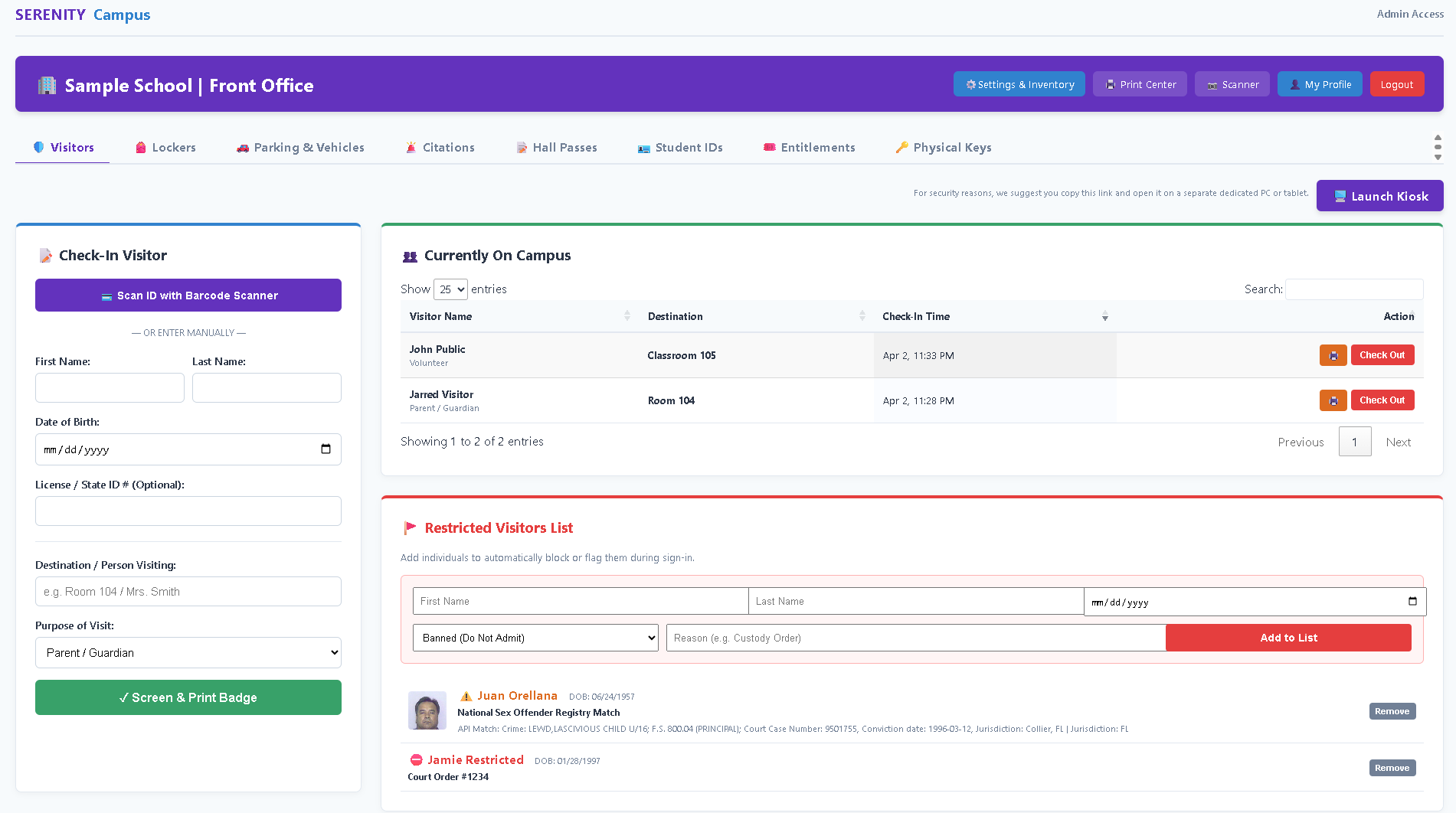
The Front Office Visitors tab allows staff to monitor active guests and manage custom restricted lists.
Self-Serve Kiosk & ID Scanning
Front desk staff can launch a secure, full-screen Kiosk on a dedicated PC or tablet. Visitors can manually enter their details, or simply scan the 2D barcode on the back of any US Driver's License using a standard barcode scanner. The system instantly parses the AAMVA barcode data to fill out their name and date of birth.
Background Checks & Restricted Lists
Every check-in is cross-referenced against national sex offender registry databases. Additionally, schools can maintain their own local Restricted Visitors List for custody disputes or specifically banned individuals.
API Caching: Severe flags, such as National Sex Offender Registry matches, are permanently cached locally to immediately restrict the individual on future visits without incurring unnecessary recurring API fees.
Locker Management
Bulk Import
You do not need to create lockers one by one. Navigate to Import in the top menu. Download the standard CSV template, fill it with your locker numbers, locations, and categories, and upload it. The system will provision thousands of lockers in seconds.
Parking & Permits
Serenity Campus supports two types of parking:
- Assigned Spaces: A specific, numbered parking spot reserved for one specific student's vehicle.
- General Permits: A pass that allows a student to park anywhere within a designated lot.
Anti-Abuse Measures: To prevent students from sharing permits by constantly updating their active vehicle, the student portal restricts vehicle edits to once every 60 days. If a student gets a new car or makes a typo, an administrator can manually override the vehicle details via the Front Office Dashboard.
Student IDs & Entitlements
Secure ID Badges & Photo Capture
When a student is added to the roster, the system generates a secure cryptographic token. From the Front Office, a secretary can use their web browser to snap a photo of the student.
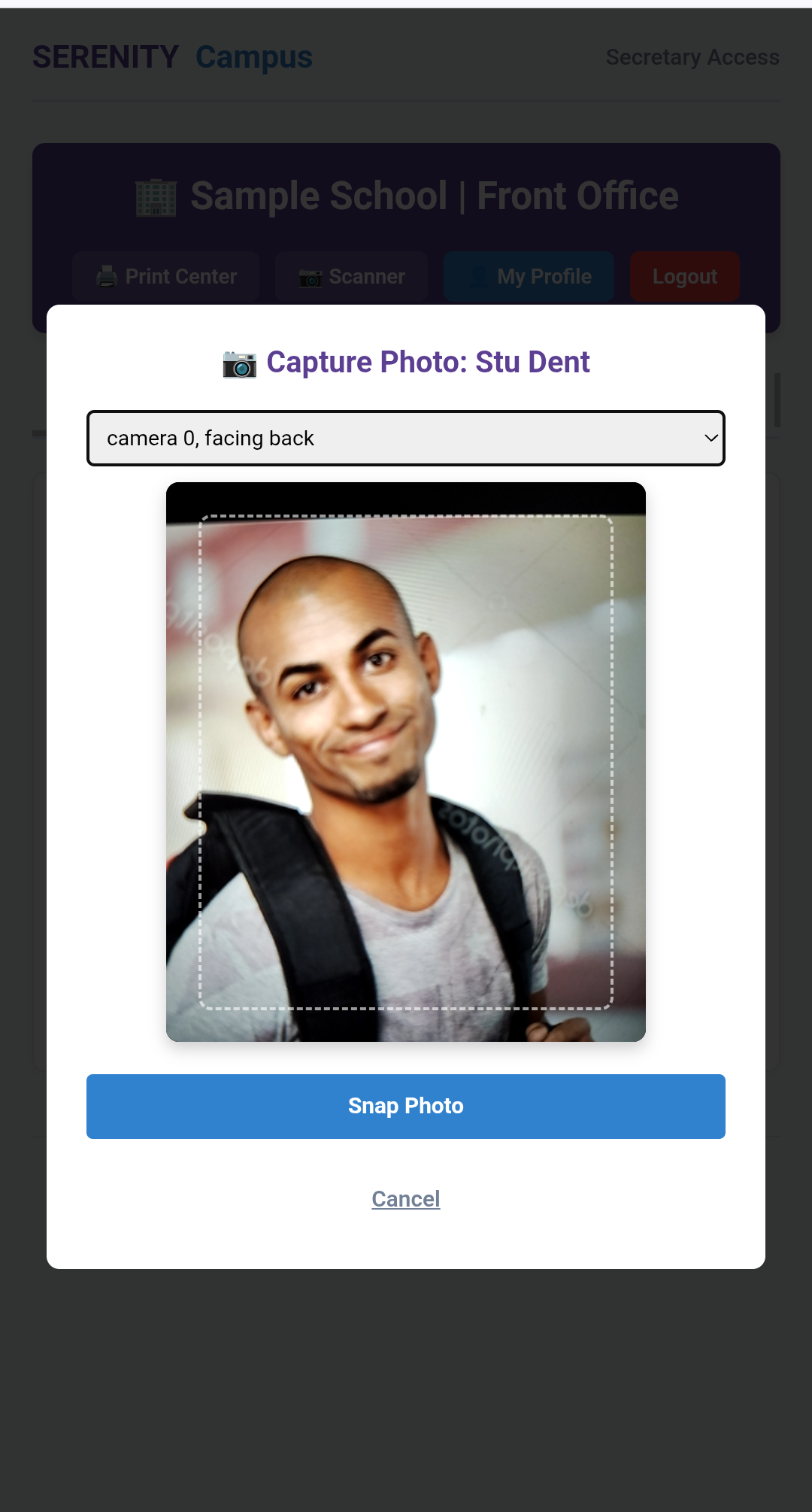
The integrated webcam capture tool crops the student's photo perfectly for their ID badge.
ID Fee Management
From the Global Settings, you can configure whether a student's first ID badge is free or requires a payment, as well as set the exact cost of replacement IDs. In the Front Office, staff can track ID payments via a 3-state toggle:
- UNPAID: Student owes money for this badge.
- PAID: Student has cleared the balance via the portal.
- WAIVED: An administrator has manually overridden the fee for this student.
Entitlements & Event Passes
Create perks (like Off-Campus Lunch or Prom Tickets) in the Inventory tab, and assign optional Expiration Dates. You can also specify Max Uses to create digital punch-cards (e.g., a 10-Game Athletic Pass). Students can purchase these from the Campus Store in their portal, or a secretary can manually grant them.
When a security guard or ticket-taker scans the student's ID, they can simply tap "Redeem 1 Use" on the scanner screen to instantly deduct a punch from their pass.
Student Obligations & Fines
Schools frequently need to charge students for lost items, damaged property, or specific class dues. The Obligations module handles this seamlessly.
- Assignment: Administrators or secretaries can assign an obligation (e.g., "Lost Library Book", "Broken Screen Fine") to any student along with a specific dollar amount.
- Editing: Only users with full Administrator privileges can edit or delete an existing obligation. Secretaries can view and add them.
- Resolution: Students see their active obligations directly in the Student Portal and can pay them off instantly via credit card, saving the front office from processing cash and writing receipts.
Physical Key Tracking
Stop losing your master keys. Admins can create a master list of physical keys (and key sets) in the Inventory section (e.g., "Master - Bldg 4", "Golf Cart 2").
From the Front Office dashboard, secretaries can check keys out to registered staff members or manually type in the name of an external vendor (e.g., "Bob the Plumber"). The system timestamps the checkout and allows for easy return tracking.
Print Center & Specs
The Print Center is a dedicated environment optimized for physical printers. It automatically strips out background colors to save ink while perfectly formatting labels for Avery templates, thermal receipt printers, and PVC Card (CR80) printers.
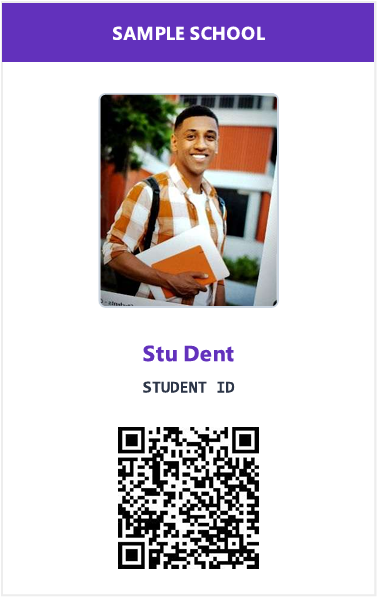
The Print Center automatically generates perfectly sized, color-coordinated CR80 ID badges.
Printing Hardware Compatibility
- Front Desk (Standard Mode): The standard Print Center and Front Office dashboards are universally compatible. You can use any standard laser/inkjet printer for Avery labels, or any standard ID card printer (like Magicard or Fargo) for student badges. The system utilizes standard web-print dialogs.
- Visitor Kiosk (Strict Mode): Automated badge printing at the Kiosk requires a DYMO LabelWriter (e.g. 450 or 550) connected via USB to a PC or Mac. Modern web browsers block standard print dialogs from opening in fullscreen mode to protect the operating system. The DYMO background framework bypasses this to print visitor badges silently without breaking fullscreen security. If a DYMO printer is not detected or you prefer to use a standard printer, the kiosk will simply instruct the visitor to retrieve their printed badge from the front desk clerk after checking in.
Digital Hall Passes
Teachers log into a dedicated, simplified dashboard. They begin typing a student's name, select a destination (Restroom, Clinic, Other), and set a timer. The digital pass is immediately active. If a security guard scans that student's ID in the hallway, the scanner will confirm they have authorization to be out of class and display the remaining time.
Scanner & Security Enforcement
Security staff and Hall Monitors have access to the Scanner module. This can be loaded on any smartphone or tablet with a camera.
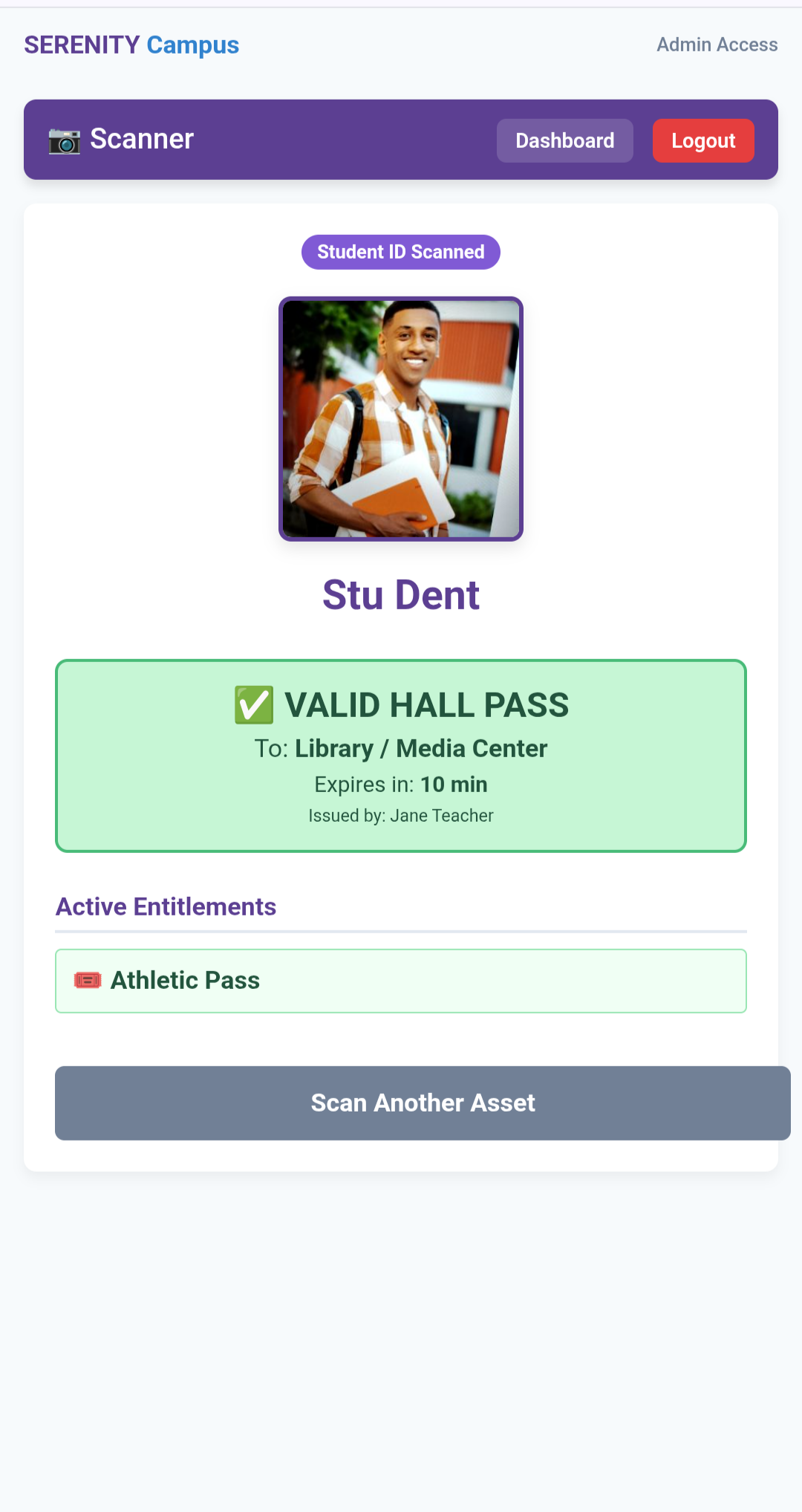
Valid Pass Interface
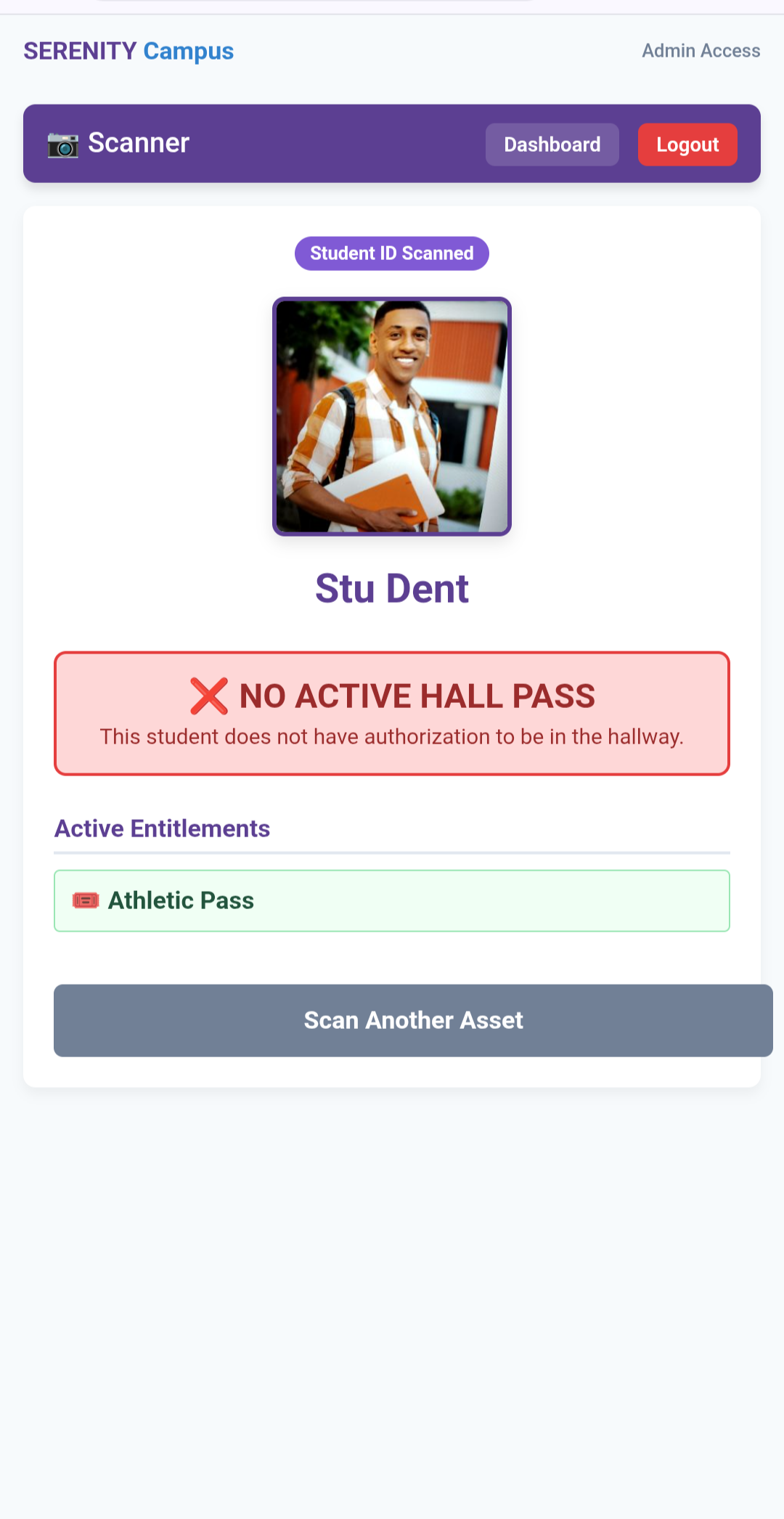
Invalid/Expired Pass Interface
- Live Verification: Scan a student ID badge to instantly verify active Hall Passes and Entitlements.
- Locker & Asset Auditing: Scan any locker QR code to instantly pull up the assigned student, retrieve the lock combination for secure access, or log maintenance requests.
- Redeem Uses: Tap to instantly deduct a "punch" from a student's limited-use athletic or event pass.
- Citation Engine: Issue warnings or paid parking citations right from the parking lot.
Analytics & Reporting
Serenity Campus includes a powerful, role-responsive analytics engine to help you track the health and financials of your campus.
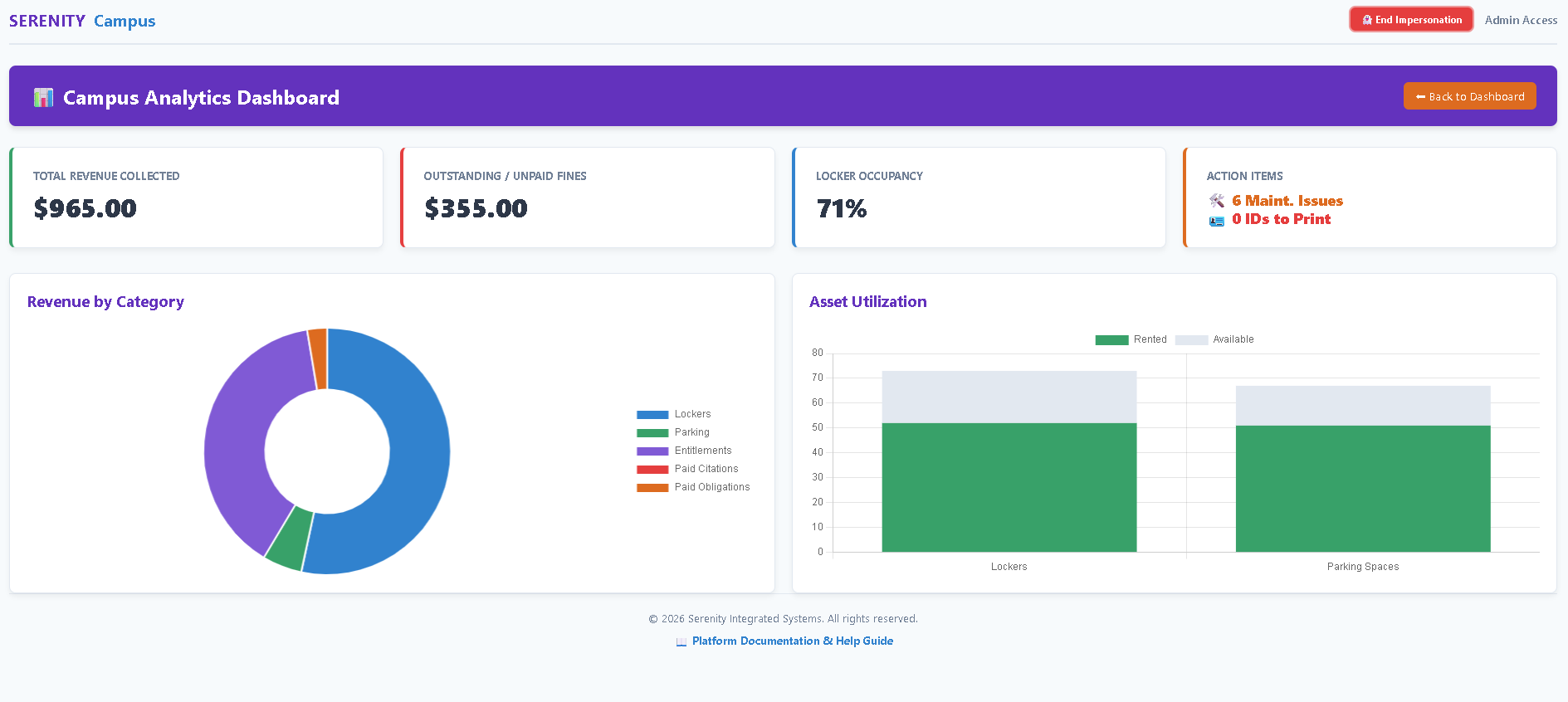
The Analytics Dashboard visualizes revenue, asset utilization, and pending action items.
Role-Based Dashboards
- Campus Administrators: View localized metrics such as locker occupancy rates, active parking permits, outstanding fines, and pending ID badge print queues.
- District & System Admins: Access global financial analytics, cross-campus transaction volumes, asset utilization district wide, and more.
Data Exports
All data visualized in the dashboard can be exported as raw CSV files for use in Excel, Google Sheets, or standard district accounting software. Navigate to the Export Center from your main dashboard to download real-time rosters, visitor logs, and financial records.
Contact Us
We are constantly improving Serenity Campus to meet the needs of educators and security staff. If you have a question, run into a bug, or have a great idea for a new feature, we want to hear from you.